
Hours of Rest — How-To Guide
Setting up MLC/STCW compliance, reviewing crew rest, and signing off the monthly timesheet.
1 Setup — Flag State and Rules
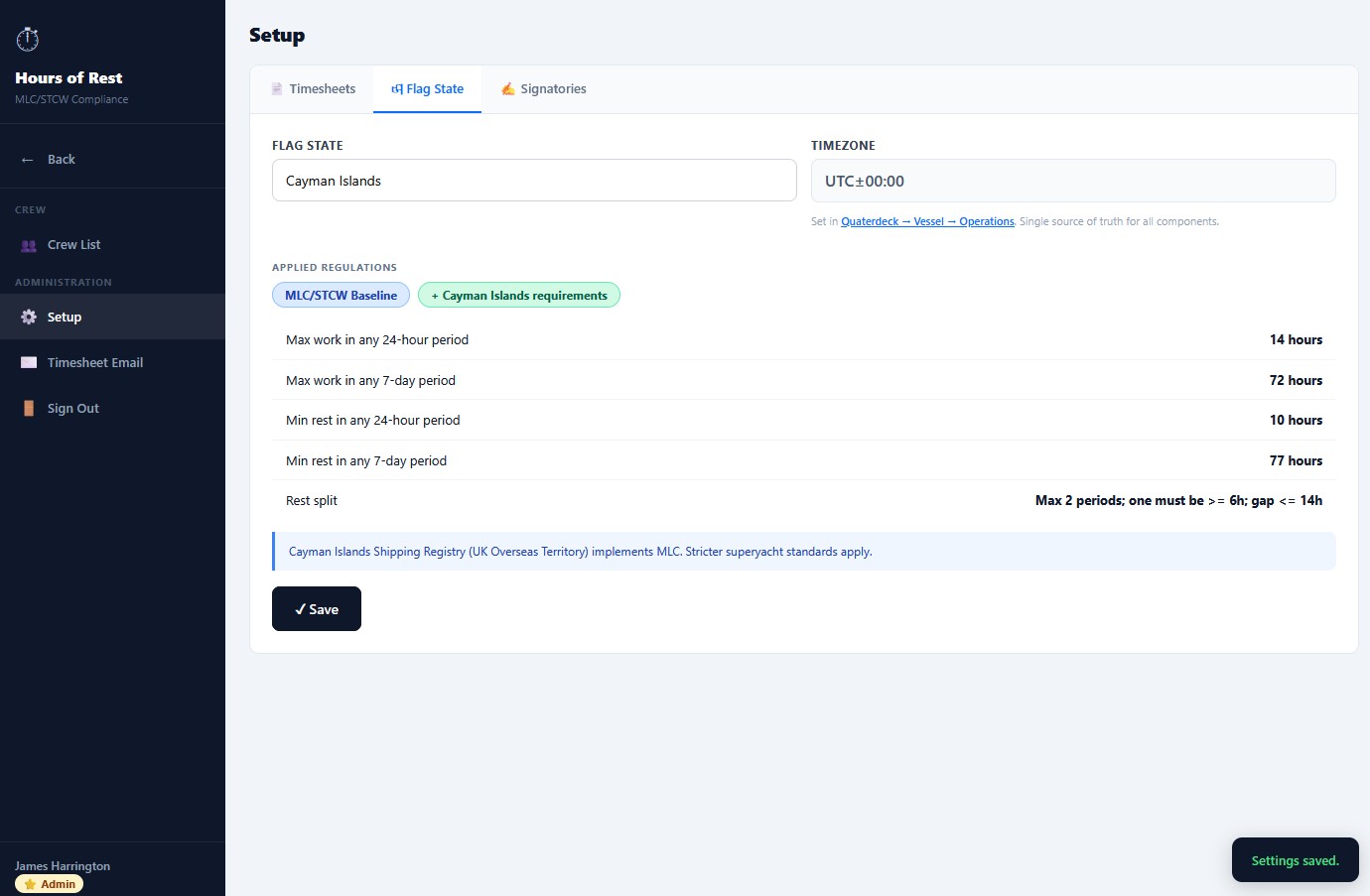
The first thing to do on a new installation is confirm the flag state and rule set. Open Hours of Rest → Setup → Flag State from the sidebar.
How the flag state is set
The flag state shown here is read directly from your Quarterdeck vessel record (Quarterdeck → Settings → Vessel Details → Identification). You don't set it here — Hours of Rest reads it from the single source of truth in Quarterdeck. If you need to change it, change it on the vessel record and it will update here automatically.
Timezone
The timezone shown is also read from the vessel record. Rest-hour calculations are performed against this timezone, so it must reflect where the vessel actually operates. A vessel in Antigua running on UTC will produce technically valid but practically misleading rest sheets.
Applied Regulations
Hours of Rest stacks two rule sets:
- MLC/STCW Baseline — the international rest-hour minimums every flag state must meet.
- Flag State requirements — your specific flag's stricter rules, added on top. In the example above, Cayman Islands implements MLC with stricter superyacht standards.
The five thresholds below the regulation tags show the actual numbers being applied:
Saving
Click ✓ Save after any change. You'll see a green Settings saved confirmation in the bottom right.
2 Crew List — Assigning HoR Roles
Open Hours of Rest → Crew List from the sidebar. This is where you control who can do what in Hours of Rest.
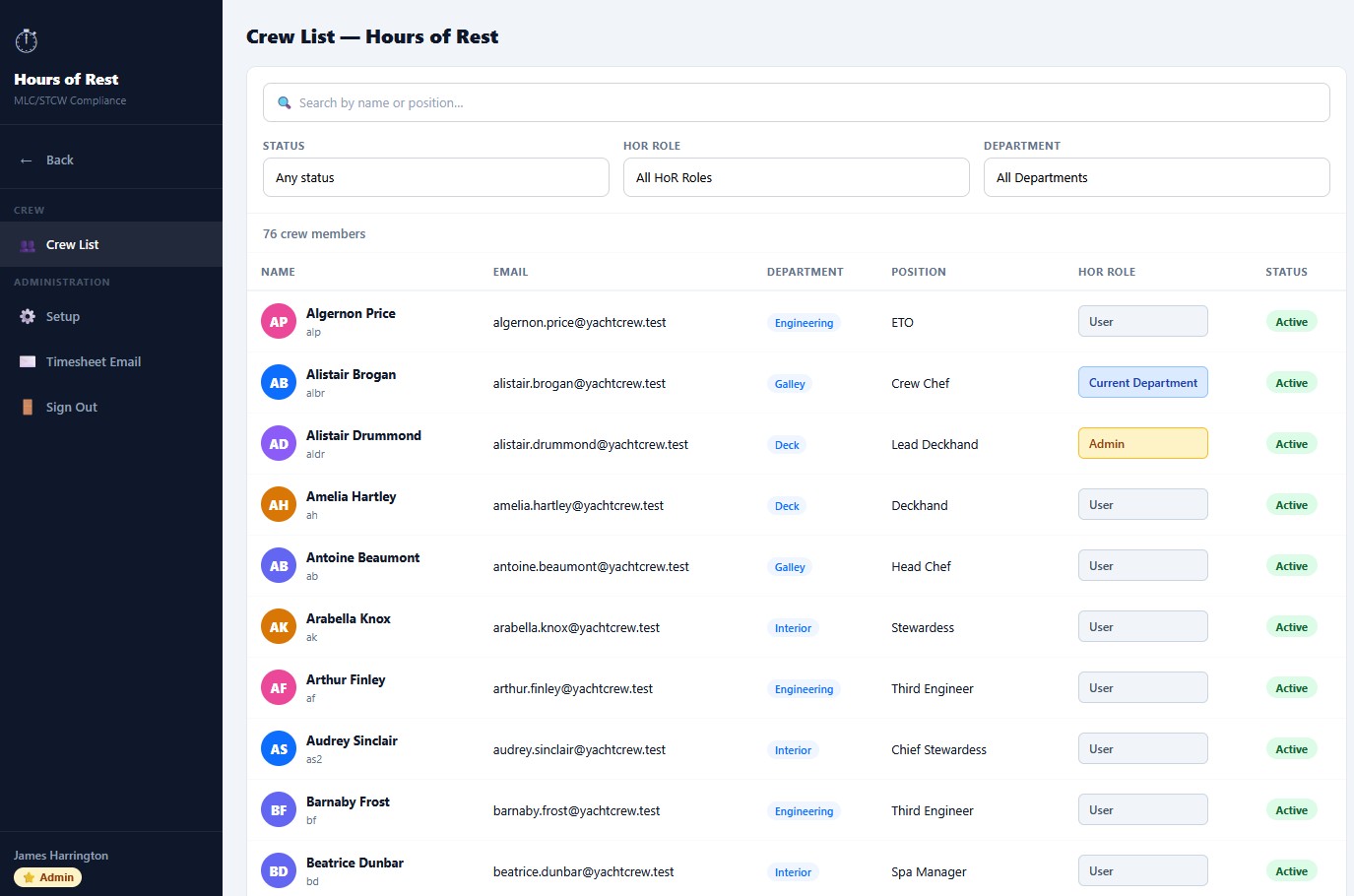
The crew here is the same list as Quarterdeck — you don't add or remove crew from this screen. What you do control is the HoR Role for each person, which determines what they can see and sign off within Hours of Rest.
HoR Roles explained
- User — logs their own rest hours. Cannot review or sign off other crew. Default for most crew.
- Current Department — can review and sign off rest sheets for crew within their own department. Typical for department heads (Chief Engineer, Chief Steward, Bosun).
- Admin — can review and sign off rest sheets for all departments. Reserved for the Master and any officer authorised to sign records on behalf of the master.
Finding crew quickly
Use the search box and filters at the top — same as Quarterdeck's Crew List:
- Search — name or position
- Status — Active, Inactive, or any
- HoR Role — filter by User, Current Department, or Admin
- Department — Deck, Engineering, Interior, Galley, etc.
3 Reviewing Crew Rest — The Review HOR Screen
Open Review HOR from the Crew Portal (or from within Hours of Rest if you have the right role). This is where department heads and the master see the rest status of their crew at a glance.
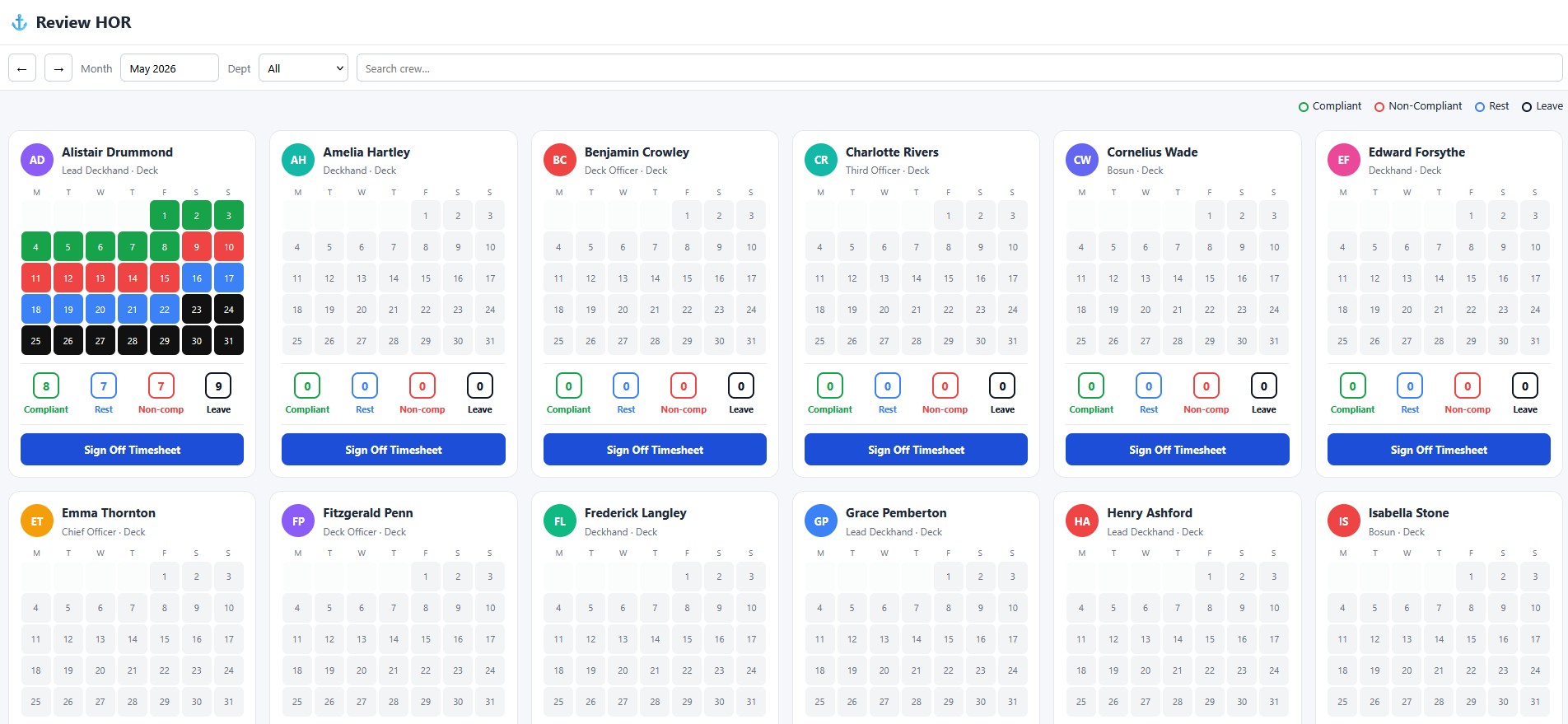
The colour code
Reading a crew card
Each card shows one crew member and one month. Above the calendar you see their name, initials, position, and department. Below the calendar you get a quick numerical summary for the month:
- Compliant — number of days that passed all rules
- Rest — number of declared rest days
- Non-comp — number of days that failed at least one rule
- Leave — number of days on leave
Filtering and navigation
- Month picker — switch to any past or current month
- ← / → arrows — jump to previous or next month
- Dept filter — show only crew in a specific department
- Search crew — find a single crew member quickly
Drilling into a single crew member
Click anywhere on a crew card (or on any individual day square) to open the detailed timesheet — the full half-hour grid where rest is logged. From there you can see exactly when the crew member worked, when they rested, and which specific rule was breached on a non-compliant day.
4 Signing Off the Monthly Timesheet
At the end of each month, every crew member's timesheet must be signed off by the master (or an authorised officer). This produces the official PDF record that satisfies MLC/STCW and is presented to port state control during inspections.
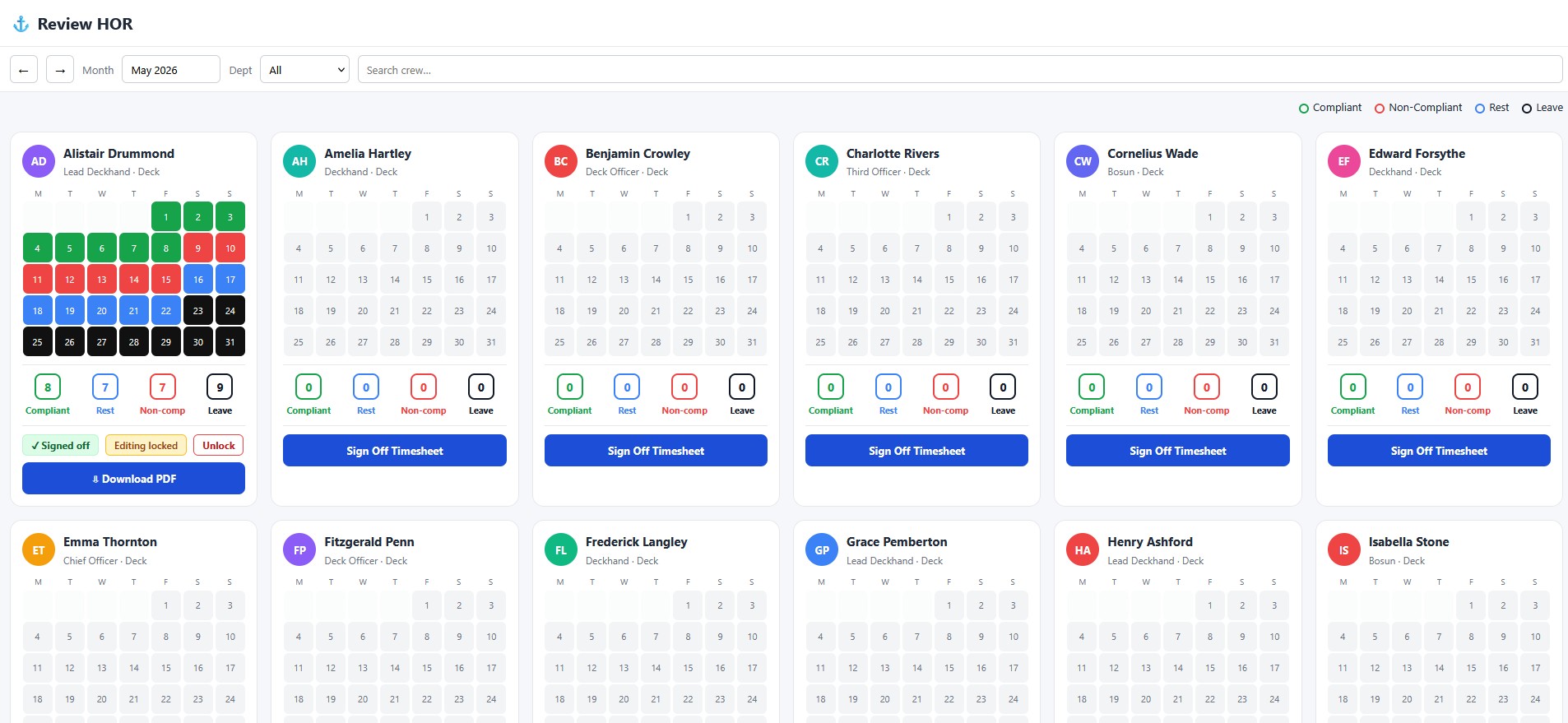
How to sign off
- Review the crew member's calendar — confirm the rest data is complete and any non-compliant days have comments explaining the cause.
- Click the blue Sign Off Timesheet button at the bottom of the card.
- Confirm — you're signing as the master (or as the officer authorised to sign on the master's behalf, set in Setup → Signatories).
- The card flips to show three things: a green ✓ Signed off badge, an Editing locked badge, and a new Download PDF button.
What "Editing locked" means
Once signed off, no one — including the master — can edit the timesheet without unlocking it first. This protects the record from accidental or deliberate post-signing changes, which is what makes the PDF defensible at an inspection.
Unlocking a signed-off timesheet
If you genuinely need to correct an error after sign-off, click Unlock. This re-opens the timesheet for editing but also logs the unlock action against your name — port state control will see that the record was reopened, and you'll need to be able to explain why.
5 The Signed Timesheet PDF
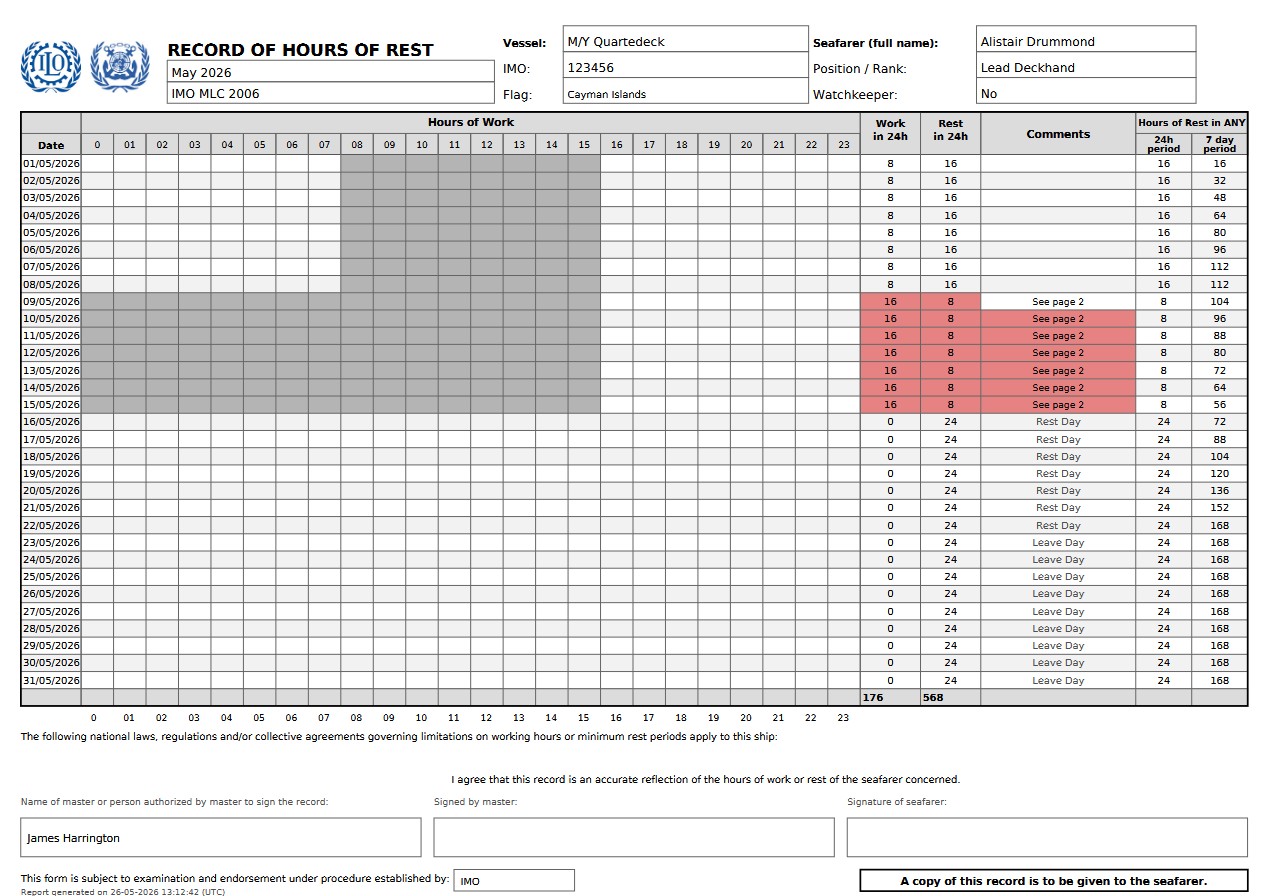
Clicking Download PDF on a signed-off card produces the official MLC/STCW record — the document port state control actually asks for during inspections.
What the PDF contains
- Header — ILO/IMO logos, "RECORD OF HOURS OF REST," month, MLC 2006 reference
- Vessel info — name, IMO, flag
- Seafarer info — full name, position/rank, watchkeeper status
- Half-hour grid — work in grey, rest in white, non-compliant days highlighted in red with "See page 2" reference
- Daily totals — work and rest hours per 24-hour period
- Rolling totals — rest in any 24-hour period, rest in any rolling 7-day period
- Signatures — master's signature block (or authorised signatory), seafarer's signature block
- Footer — "A copy of this record is to be given to the seafarer" and the report-generated timestamp
Page 2 — comments on non-compliant days
Days marked "See page 2" carry a written explanation on the second page (port-call exemptions, emergency drills, safety incidents, etc.). This is what makes a non-compliant day defensible — the absence of an explanation, not the presence of non-compliance, is what creates trouble at inspection.
"A copy of this record is to be given to the seafarer"
This isn't a suggestion — it's an MLC requirement. Quarterdeck can do this automatically (see the next step).
6 Automatic Email Delivery
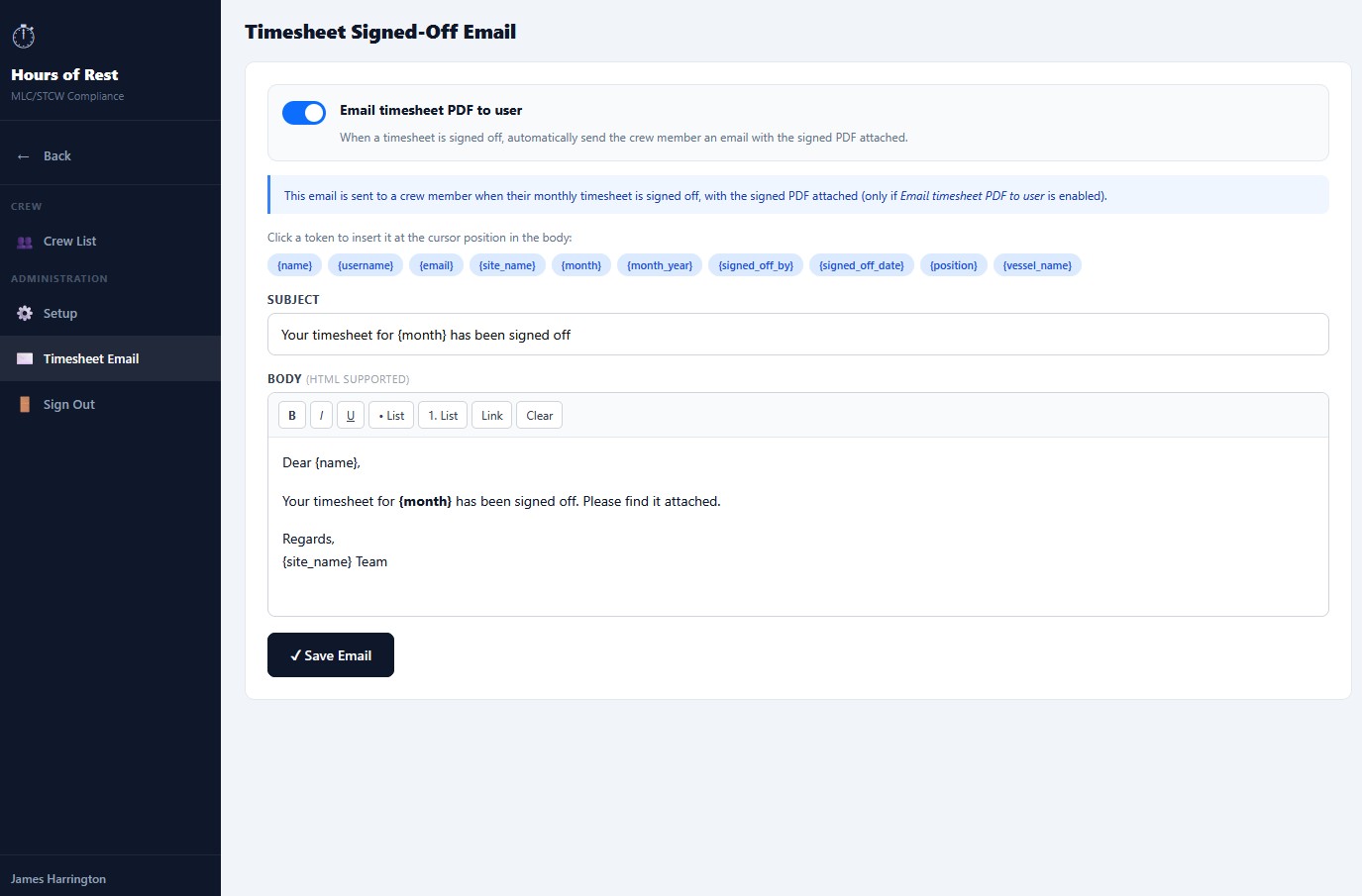
Hours of Rest can automatically email each crew member their signed PDF the moment their timesheet is signed off. Configure this in Hours of Rest → Timesheet Email.
Enabling automatic delivery
Toggle Email timesheet PDF to user on. When enabled, every sign-off triggers an email to the crew member with the signed PDF attached. This satisfies the MLC "copy to the seafarer" requirement automatically, with no manual step required from the master.
Customising the email
The subject and body fields support tokens that get replaced with real values when the email is sent. Click any token chip to insert it at the cursor position:
{name}— crew member's name{username}— crew member's login username{email}— crew member's email address{site_name}— name of your Quarterdeck installation{month}— month the timesheet covers (e.g. "May"){month_year}— month and year (e.g. "May 2026"){signed_off_by}— name of the person who signed{signed_off_date}— date the sign-off was completed{position}— crew member's position{vessel_name}— vessel name from the Quarterdeck record
Body editor
The body supports basic HTML formatting (bold, italic, underline, bulleted and numbered lists, and links). Keep it short — most crew won't read past the first sentence; the attachment is what they need.
Saving
Click ✓ Save Email. The settings take effect immediately for the next sign-off.
7 The Sidebar — Quick Reference
The Hours of Rest sidebar is organised into three groups:
Crew
- Crew List — assign HoR Roles per crew member (Step 2)
Administration
- Setup — three tabs: Timesheets (display preferences), Flag State (rules, covered in Step 1), and Signatories (who can sign on behalf of the master)
- Timesheet Email — automatic sign-off email configuration (Step 6)
Navigation
- ← Back — return to the Quarterdeck Admin Panel
- Sign Out — end your session