Crew Portal — Your Guide
Everything a crew member needs to know about using Quarterdeck on their phone.
1 Signing In
Open your phone's browser and go to your vessel's Quarterdeck address (your master or chief will give this to you — for example, quarterdeck.boats).
Your login details
Depending on how your admin has set things up, you'll either receive your login from them or you'll create your own account on the first visit (see If you're new aboard below).
- Username — letters only. No dots, spaces, @ symbols, or other characters. For example,
jamesharringtonorjharrington. - Password — your private password. On first login you can change it to something only you know.
- Keep me signed in — tick this on your personal phone so you don't need to enter your password every time.
If you're new aboard
If self-registration is enabled on your vessel, tap Create an account below the Sign In button. If it's disabled, your admin will create the account for you and give you the login details — check with them first.
2 Install Quarterdeck on Your Phone
Before going further, install the Crew Portal as an app on your home screen. This makes it open like a real app — no browser bars, faster to launch, works offline, and feels like a proper app instead of a website.
Why install as an app?
- One tap to open — Quarterdeck lives on your home screen, just like Instagram or WhatsApp
- No browser bars — uses the full screen, looks and feels native
- Reliable on the vessel's own network — if your vessel installs Quarterdeck onboard, the portal works on the local network without an internet connection.
- Faster to launch — no waiting for the browser to start up
iPhone / iPad — four taps
On an iPhone or iPad, open Quarterdeck in Safari (it must be Safari — Chrome won't work on iOS for this).
Tap the Share button
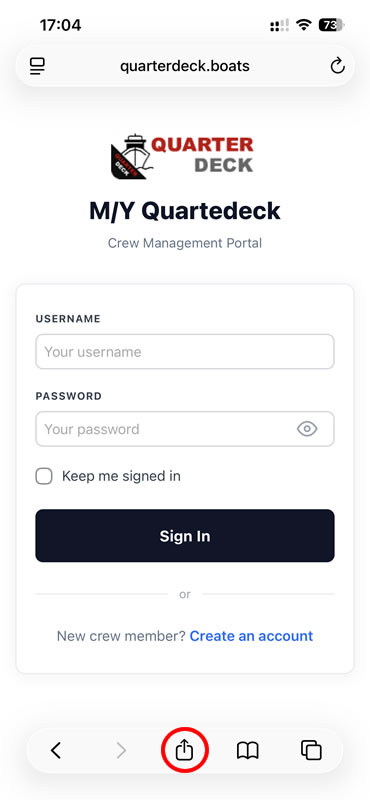
At the bottom of the Safari screen, tap the Share icon (the square with an arrow pointing up).
Tap View More
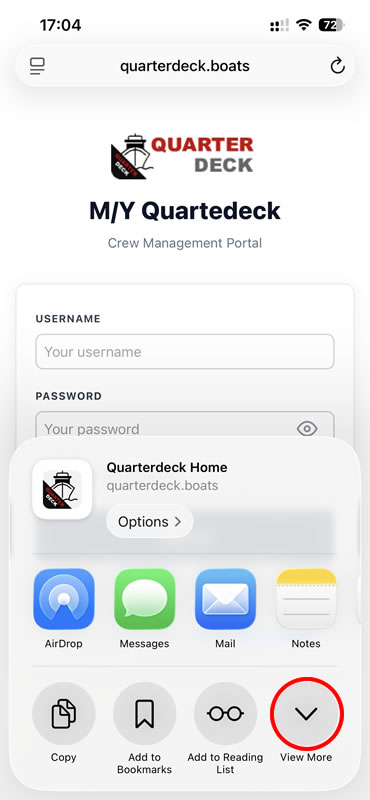
The share sheet opens. Tap View More (the small ∨ chevron in the bottom right) to expand the full menu.
Tap Add to Home Screen
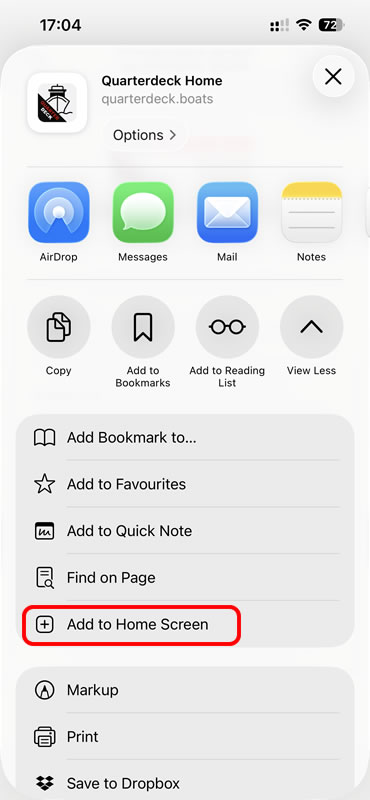
Scroll until you see Add to Home Screen. Tap it.
Confirm and Add
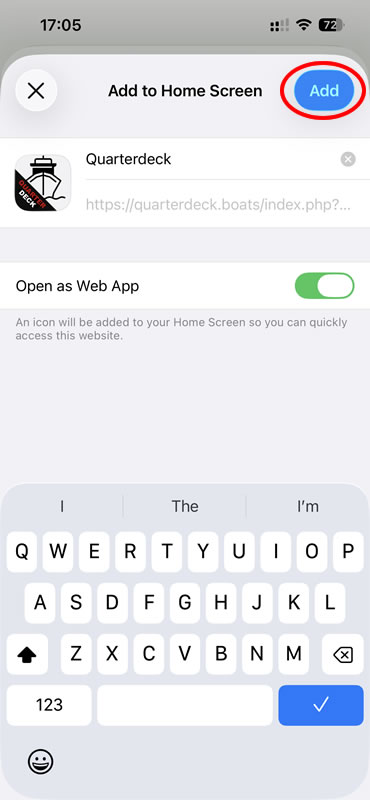
Check that Open as Web App is on, then tap Add in the top right. Done.
Android — Chrome
The Android process is simpler:
- Open Quarterdeck in Chrome.
- Tap the three dots ⋮ in the top right corner.
- Tap Install app (or Add to Home screen, depending on your Android version).
- Confirm. Quarterdeck appears on your home screen.
On most Androids, Chrome will also offer this automatically with a popup the first time you visit — "Install Quarterdeck?" Just tap Install.
3 Your Home Screen
Once you're signed in, you land on the Quarterdeck home screen. Everything you need is here.
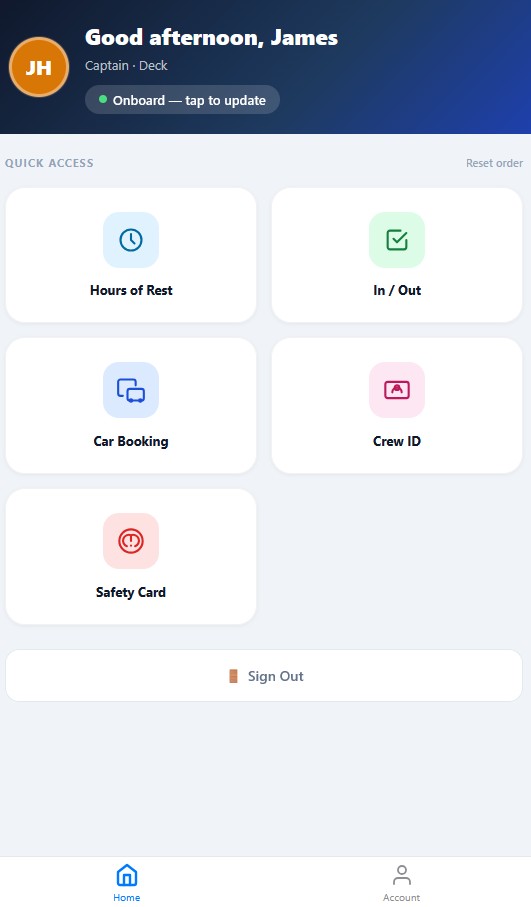
The header
- Your initials and name — confirms you're signed in as the right person
- Your rank and department — e.g. "Captain · Deck"
- Status banner — green "Onboard — tap to update" when you're aboard, changes colour when you're ashore
The tiles
Each tile is a section of the portal. Which tiles you see depends on your role — a deckhand will see fewer tiles than the chief officer. The common ones:
The bottom bar
- Home — return to this screen from anywhere
- Account — change your password, update your details, sign out
4 Logging Your Hours of Rest
This is the daily task. Maritime regulations (MLC 2006 and STCW) require every seafarer to log their rest hours every day. Quarterdeck makes this quick.
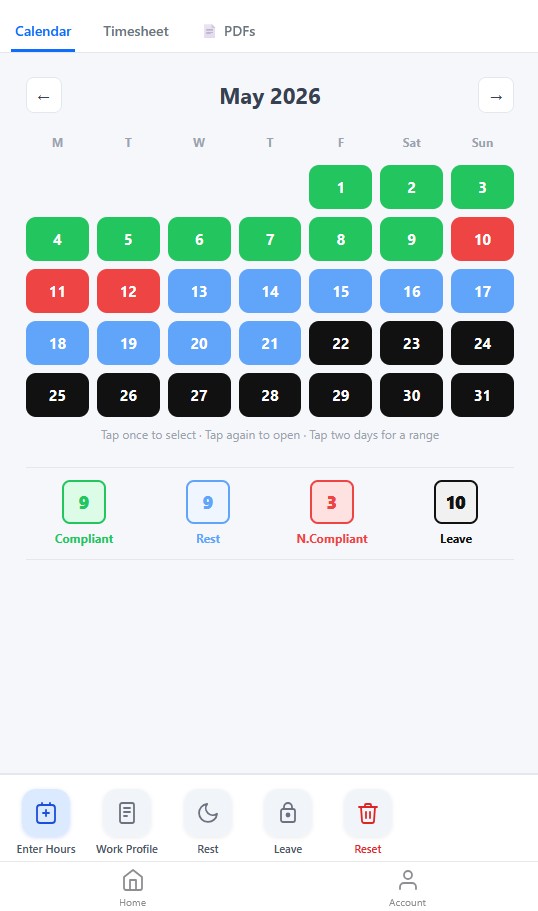
Reading the calendar
The calendar shows you a month at a time. Each day is colour-coded:
- Green — compliant rest hours logged
- Blue — declared rest day
- Red — non-compliant (your rest didn't meet the rules)
- Black — leave day
- Grey — not yet logged
At the bottom of the calendar, summary counts show the month: how many days compliant, rest, non-compliant, and leave.
The four quick-action buttons
Below the calendar:
- Enter Hours — open the detailed grid to log your hours for a specific day
- Work Profile — for crew with predictable schedules, set a recurring work pattern
- Rest — quick-mark a day as a rest day
- Leave — quick-mark a day as leave
- Reset — clear a day if you made a mistake
Entering rest hours for a day
- Tap the day on the calendar (or use the Enter Hours button).
- The half-hour grid opens — 48 cells covering the 24 hours.
- Tap-and-drag across cells to mark them as Work (filled) or leave blank for Rest.
- Tap Save.
The system automatically checks compliance against your flag state's rules and shows you the result.
Three tabs at the top
- Calendar — the monthly view shown above
- Timesheet — the printable monthly grid view
- PDFs — your signed-off PDFs from previous months (downloadable)
5 Signing In and Out
The In / Out tile is how you tell the system whether you're physically aboard or ashore. This is the same data that drives the Crew Board KPIs — it's how your master knows who's around.
From the Home banner
The fastest way: tap the green "Onboard — tap to update" banner at the top of the home screen. This opens a quick toggle to switch between Onboard and Ashore states.
From the In / Out tile
The full screen lets you:
- Confirm your current status
- Sign out with a destination (Ashore, Airport, Going on Leave, or custom destinations your vessel uses)
- Add a note (e.g. "Back for dinner")
- Set an expected return time
6 Booking a Car
The vessel's vehicles can be booked through the Crew Portal — for personal trips, runs ashore, or ship's business.
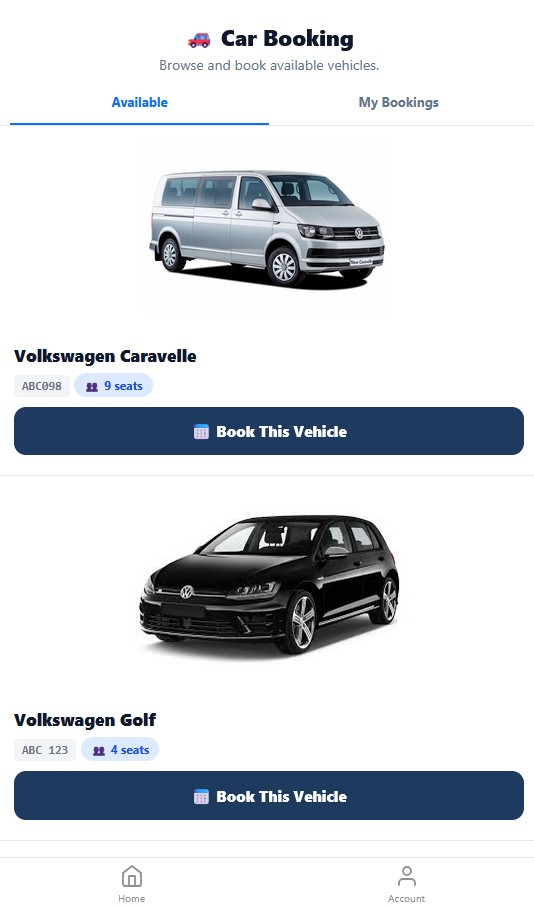
Browsing vehicles
The Available tab shows every vehicle, with a photo, name, registration, and seat count. Tap any vehicle's Book This Vehicle button to start a booking.
Making a booking
- Choose the date.
- Pick a start and end time. The system shows you what's already booked on that day.
- Enter the number of passengers (must be ≤ the vehicle's seat count).
- Optionally add purpose ("Airport run") and destination ("Marina Mall").
- Tap Confirm Booking.
My Bookings
The My Bookings tab shows your upcoming and past bookings. From here you can:
- Check Out — when you collect the keys and physically take the vehicle
- Check In — when you return the vehicle to the pool
- Cancel — drop a booking you no longer need
Cancellation etiquette
If you've booked but no longer need the vehicle, cancel as soon as you know — not at the last minute. Other crew may be waiting for the same car.
7 Your Safety Card
The Safety Card tile shows your personal emergency duties — what you do when the alarm sounds. Every crew member has one, generated from the vessel's muster bill.
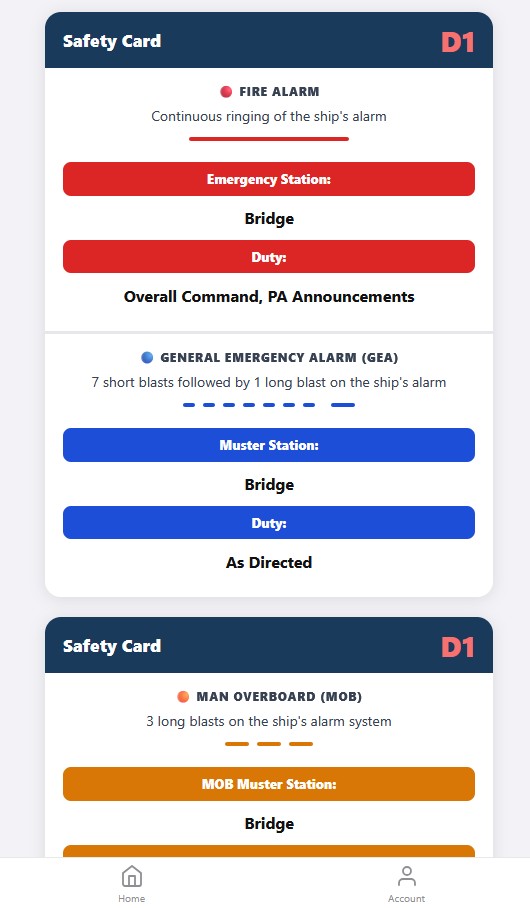
What's on your Safety Card
Your muster number (e.g. D1) is shown prominently in red, top right of each section. Below it, broken down by alarm type:
- Fire Alarm — continuous ringing of the ship's alarm
- Emergency Station — where you go
- Duty — what you do
- General Emergency Alarm (GEA) — 7 short blasts followed by 1 long blast
- Muster Station — where you assemble
- Duty — what you do
- Man Overboard (MOB) — 3 long blasts
- MOB Muster Station
- MOB Duty
If your card changes
If you're reassigned (e.g. promoted, or move to a different team), your Safety Card updates automatically — the Quarterdeck system reflects whatever your admin sets. Always check your card after a crew change or rotation.
8 Account Settings
Tap the Account icon at the bottom of any screen to manage your account.
What you can do here
- Change password — do this if you suspect anyone else knows yours
- Update your details — phone number, emergency contacts, dietary requirements (depending on what your vessel collects)
- Sign out — useful if you're on someone else's device
If you forget your password
Ask your master, chief officer, or admin. They can reset it from their side without needing your old password.
9 Tips for Daily Use
Patterns that experienced Quarterdeck crew adopt:
- Log your rest hours at the end of each watch — five minutes daily, not an hour at the end of the month.
- Update your sign in/out status whenever you leave or return — even for a quick run to the chandlery. Muster accuracy depends on it.
- Cancel car bookings as soon as your plans change — others may be waiting.
- Re-read your Safety Card after every drill — drills are practice; knowing the card means you don't need to think during the real thing.
- If the portal feels slow, ask your admin if you have an onboard install — onboard installs are faster than internet-hosted ones, and the difference is noticeable at sea.
10 Troubleshooting
I can't sign in
Check that you're using the correct username and that Caps Lock is off. If your password isn't working, ask your admin to reset it.
The portal won't open on my phone
Try the URL in a normal browser tab first. If that works but the installed PWA doesn't, delete the icon from your home screen and reinstall (Step 2).
My Safety Card is wrong
Tell your master or chief officer — only an admin can update your muster position assignment. The card itself is generated from the assignment, so the fix happens on the admin side.
I'm seeing a tile I shouldn't (or missing one I should)
Tiles are controlled by your role. If you've recently been promoted or your role changed, the portal may need a refresh — try signing out and back in. If that doesn't fix it, ask your admin to check your role assignment.
The portal is slow or behaving oddly
Most issues resolve with: (a) refreshing the page, (b) checking your internet connection, (c) signing out and back in. If something stays broken, let your admin know — they can email Quarterdeck support.